Codex Product Design: Design Website and App UI
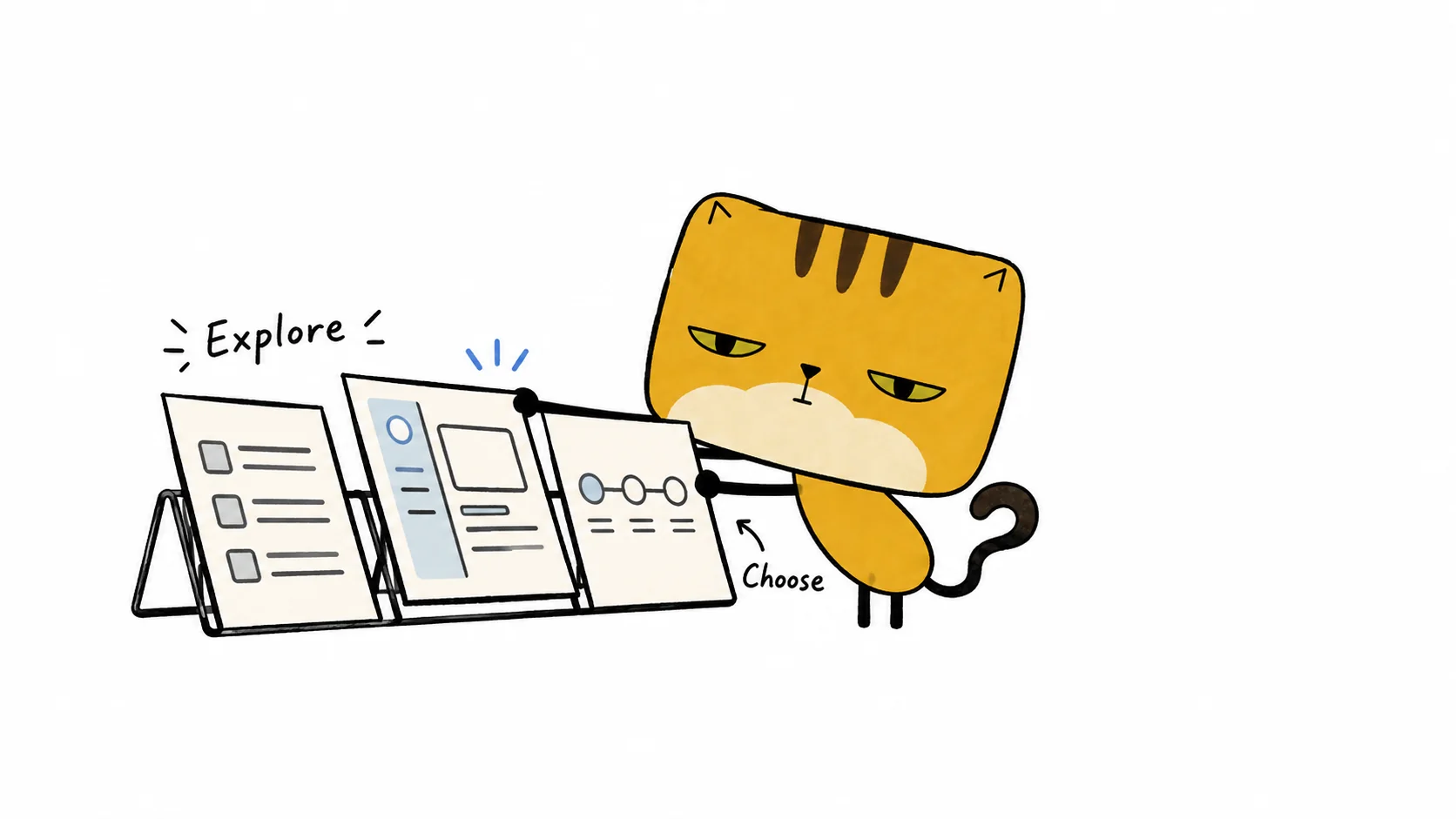
Here are two methods I use to get better UI out of Codex:
- Design website and app UI with the Product Design plugin. Codex draws three directions first, you pick one, and then it builds.
- Polish the result with the award-tier prompt. A short prompt that is going around online. It makes Codex review the page across eight design dimensions and keep fixing what it finds.
Either one works alone. Together they cover both halves of the job: the plugin settles the direction, the prompt sharpens the details.
Method 1: Design website and app UI with the Product Design plugin
Start with a screen and a user goal
Give Codex the current screenshot, or point it at a specific page in the repository. Then say what the person using the screen needs to get done. “Redesign settings” could mean finding a preference faster, understanding account permissions, or avoiding accidental changes, and each of those leads to a different layout.
Add the constraints that matter: existing components, brand colors, copy, required controls, and target devices. If you have a reference, attach it and say what you like about it, such as the restrained typography, the section spacing, or the way the primary action stands out.
OpenAI’s frontend design guidance recommends the same thing: concrete visual references, and reuse of the project’s existing components and design system.
For example: “This notification settings page is for individual users. Help them understand email and push preferences quickly. Keep the existing controls and copy. Desktop and mobile both matter.” That is enough to start.
Ask for three UI directions before any code
Select the Product Design plugin in your Codex environment, or mention it with @Product Design. OpenAI’s plugin documentation covers installation. This is the shortest prompt I use:
@Product Design
Redesign this settings screen and show me three directions.
Generate three separate UI mockup images before coding.
Wait for me to choose a direction.
The order is what matters: explore visually, choose, then build. You see three real options before Codex writes a line of HTML.
The plugin version I used, 0.1.56 (checked October 25, 2026), produces three independent image options for ideation and waits for your pick before implementation. OpenAI’s idea-to-prototype guide describes the same flow: choose a visual direction, then build and verify a prototype.
To make the three options genuinely different, spell out the structure of each:
@Product Design
Redesign the attached notification settings screen.

Audience: individual users managing email and push preferences.
Goal: make the available choices easy to find and understand.
Preserve the existing controls, copy, and design-system tokens.

Generate three separate desktop UI mockup images:
- Grouped rows, with all preferences on one page.
- Section navigation, with preferences grouped by channel.
- A guided sequence, handling one group at a time.

Vary layout and information hierarchy, not just colors.
Keep labels readable and avoid unnecessary panels.
Explain the mobile adaptation when we review the options.
Do not code yet. Wait for my selection.
Each direction suits a different situation:
- Grouped rows put every preference on one page, which makes scanning fast.
- Section navigation groups settings by channel, which suits a larger settings area.
- A guided sequence handles one group at a time, which suits first-time setup.
Pick based on the user goal, not on which image looks nicest.
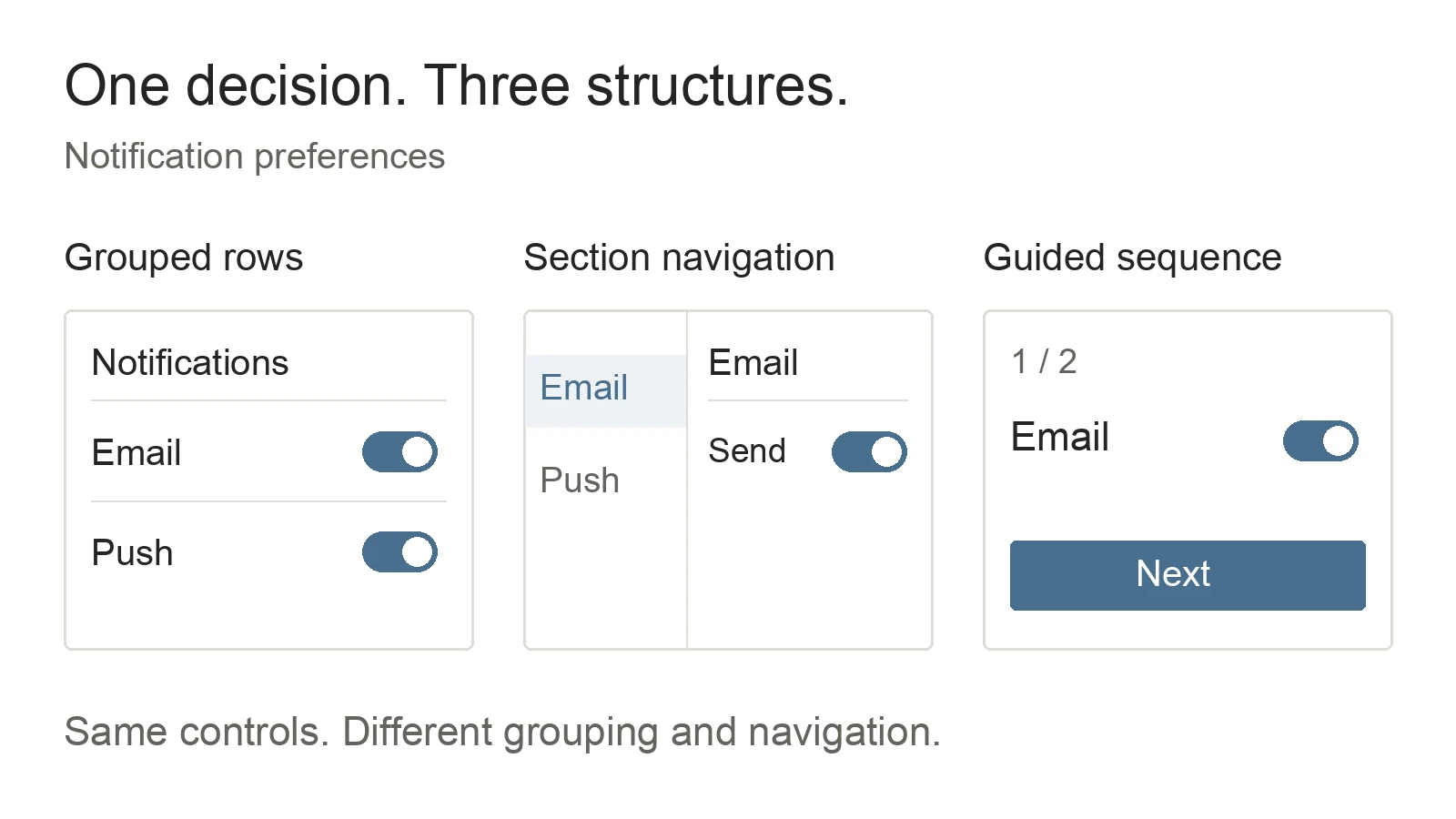
Illustrative layouts, not Product Design outputs. Different structures give you more to compare than three color palettes.
Build the chosen direction in your project
Once you choose, attach or name that exact image, and describe any tweaks before implementation. To combine parts of different directions, ask for a revised mockup first so the target stays clear. Then:
Implement the selected mockup in the current repository.
Use it as the visual target and reuse existing components,
tokens, typography, and icons.

Keep the existing routes, controls, copy, and save behavior.
Adapt the layout for mobile while preserving its hierarchy.
Implement the relevant focus, selected, disabled, and error states.
Include only purposeful motion and support reduced motion.
Run the project's required checks, then inspect it in a browser.
One detail to watch: a front-end prototype can show a saving spinner without saving anything. If your page needs real persistence, say so in the task.
Method 2: Polish the design with the award-tier prompt
This prompt has been shared widely. The idea is simple: Codex compares your page against Awwwards, Webby Awards, and FWA winners across eight dimensions, fixes the gaps, and reviews again.
::OBJECTIVE{site_design|pri:OVERRIDE_ALL}
  target: build page to award-tier visual standard
  ACCEPT: no visible improvement remaining across all CHECK dimensions
  BENCHMARK: Awwwards | Webby Awards | FWA winning entries

::CHECK{typography|standard:award_tier}
::CHECK{whitespace|standard:award_tier}
::CHECK{visual_hierarchy|standard:award_tier}
::CHECK{color|standard:award_tier}
::CHECK{motion|standard:award_tier}
::CHECK{micro_interaction|standard:award_tier}
::CHECK{responsive|standard:award_tier}
::CHECK{originality|standard:award_tier}

::LOOP{self_review|trigger:on_completion}
  [READ] current page against CHECK list
  [COMPARE] each dimension to BENCHMARK entries
  [IF] gap found => [PATCH] then re-enter LOOP
  [IF] no gap => [Ω]
To use it, finish a first version of the page and paste the prompt into Codex. It reviews its own work against the list and patches what it finds.
Its real value is the eight dimensions. “Make it look better” gives Codex nothing to aim at, while this list tells it exactly what to examine on each pass:
| Dimension | What Codex looks at |
|---|---|
| Typography | Readable labels and body copy, a consistent type scale, comfortable line lengths |
| Whitespace | Related controls kept together, section gaps that make the groups clear |
| Visual hierarchy | Page purpose, section headings, and key actions easy to tell apart |
| Color | Contrast that holds up, status understandable without color alone |
| Motion | Transitions that explain changes, with reduced-motion support |
| Micro-interaction | Hover, keyboard focus, selected, disabled, saving, and error states |
| Responsive | Usable controls and labels at narrow widths, no overflow or clipped actions |
| Originality | Distinctive choices that serve the product instead of a generic template |
Tips for getting more out of it
- Add browser screenshots. Ask Codex to open the page at 375, 768, and 1440 CSS pixels wide and check each dimension against what it sees.
- Pair it with Method 1. Product Design fixes the visual direction; the award-tier prompt refines the implementation.
- Match the ambition to the page. Award-winning sites are great inspiration for typography, composition, and transitions. For a settings page or admin screen, clarity comes first, and motion earns its place by explaining a state change.
When I want a more focused final check, I append this browser review prompt:
Review the working page against the selected mockup and
the eight design dimensions above.

Inspect at 375, 768, and 1440 CSS pixels wide.
Capture screenshots and check actual keyboard interaction,
relevant control states, and reduced-motion behavior.

List concrete issues tied to a screenshot or interaction.
Fix the most important ones, then recheck affected states.
Use at most three focused review passes.
Finish with remaining issues and anything you could not verify.
Specific findings make the next pass easy: “The section gaps on mobile make related controls look disconnected,” or “The save confirmation shifts the form downward.” Each one points at something you can fix and recheck.
This is the same approach I describe in designing AI workflows: define the output and the acceptance check, then set a stopping point. For help with references and image constraints, see my GPT Image 2.5 prompt examples.
How I use both together
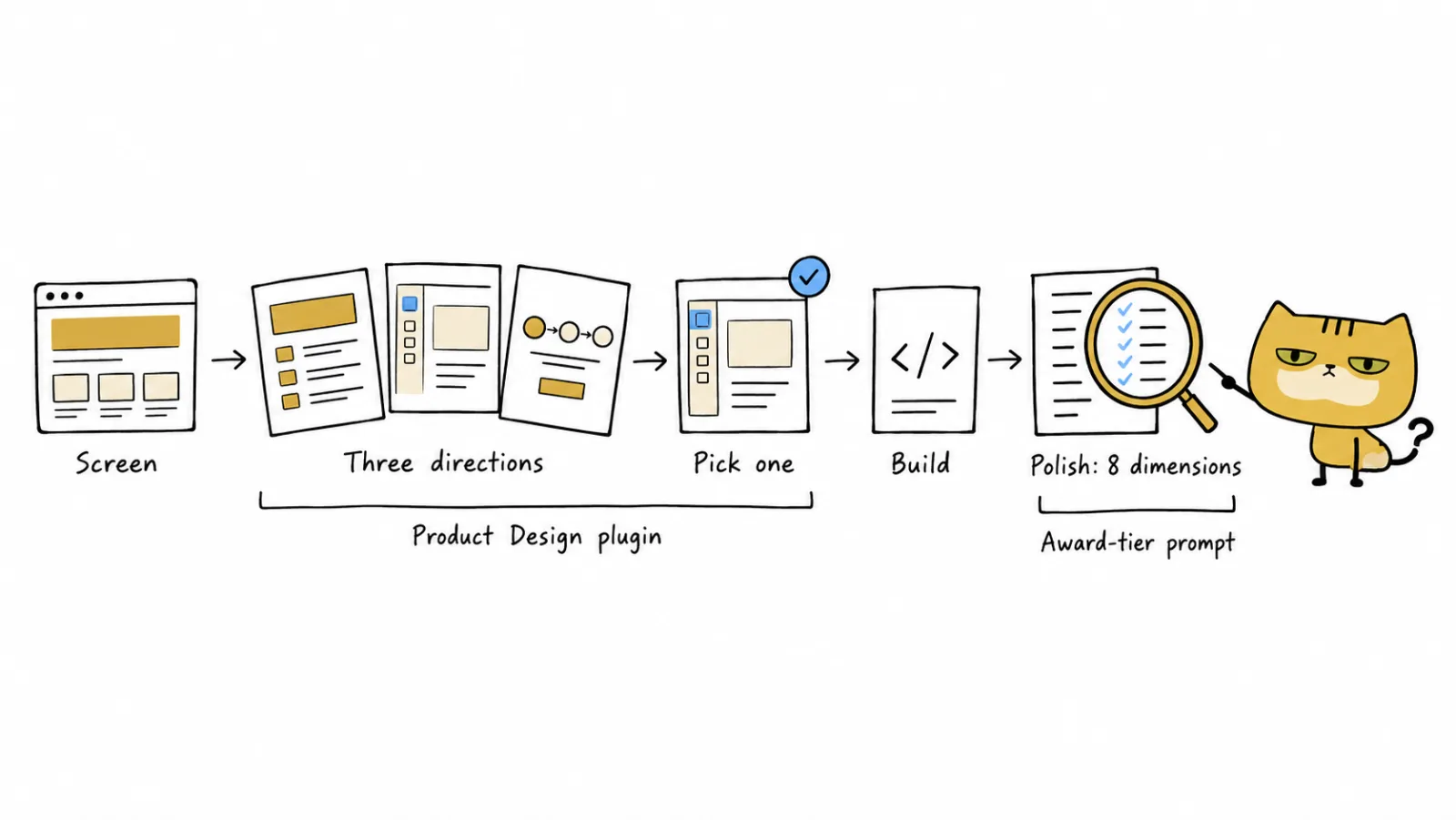
- Attach the current screen and state the user goal.
- Ask
@Product Designfor three separate directions and pick one. - Have Codex implement it in the existing project.
- Paste the award-tier prompt and let it polish across the eight dimensions.
- Check the page in a browser at three widths and fix what you see.
On your next screen, try the whole sequence and keep the screenshots next to the result.